Disable Outbound Communications
Note
Information and features vary according to the roles to which you belong and the permissions associated with those roles. For more information, contact your module manager or your campus support team.
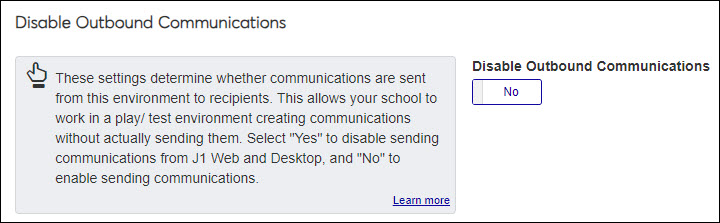
The Disable Outbound Communications setting lets you disable sending actual communications while working in test environments.
When enabled, the test environment will utilize the same configurations as your production or live environment. However, instead of relaying emails and text messages to external services like SendGrid or Twilio, these communications will be logged within the J1 Web log file for reference and troubleshooting purposes.
When you enable this setting, you can simulate real-world communication scenarios without inadvertently sending messages to external recipients during testing or development phases. This approach ensures a controlled testing environment while maintaining visibility into the communication flow through the log file.
How To
Access the System Administration, Communications page.
Locate the Disable Outbound Communications configuration.
Click the Disable Outbound Communications option to enable or disable sending communications.
FAQ
No, but if contact information is not set up, users will not be provided with a way to contact your support team when they encounter a technical or login issue. There will also be no email address available to receive login error log messages. These messages provide helpful information about the issue and a log number for referencing additional information in the log file.