Searching
Global Person Search
Global Person Search
The global person search is available from the top right-hand corner of every page in the system and helps you find people in J1 Web. Depending on your role and permissions, you can search against different criteria such as Name/ID, email and mailing address, and phone number. Select a filter and a search option to narrow down your results.
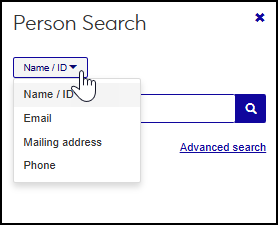
You can search for anyone in J1 Web and access general directory information such as name, street and email address, and phone number. To view email, mailing address, and phone number information you must have the appropriate permissions granted in the Person Management or External Person Management roles (or copies of them).
Notice
An Events Coordinator can search and view contact information about a student and potential event participant, but not see that student’s advising information.
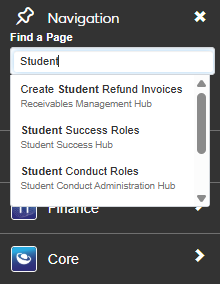
The global page search is available from the top left-hand system navigation panel and helps you find pages in J1 Web. Only those pages you have permission to view are available for you to choose from.
How To
From the top right-hand corner, click the Search icon
 .
.In the second drop-down, select one of the following filters to search against.
Name / ID
Email
Mailing address
Phone
In the Search box, enter the information you are searching (e.g., part of a phone number or name).
Select from the results that appear automatically, or click the More results or Advanced search links to open the Advanced Search page.
NOTE FOR WRITERS: FEATURE REMOVED WITH 26.1. May return.
Click the Search icon
, and select Event from the first drop-down.In the second drop-down, select either the event Name or Location to search against.
Select from the results that appear automatically, or click the More results or Advanced search links to open the View Events page.
NOTE FOR WRITERS: FEATURE REMOVED WITH 26.1. May return.
Click the Search icon
, and select Facility from the first drop-down.In the Search box, enter the name (or part of the name) of the place or space you want to view.
Select from the results that appear automatically, or click the More results or Advanced search links to open the View Places page.
From the left-hand navigation, enter the name (or part of the name) of the page you want to view in the Find a Page field.
Select from the results that appear automatically. Only those pages you have permission to view are available for you to choose from.
FAQ
You may not have permission to view that page or the system may not have refreshed yet. New or changed pages can take up to an hour to appear in the search. For more information, contact your campus support team.
The global search for new people may not have refreshed yet. It may take up to 24 hours for a new person to appear in the global search. For more information, contact your campus support team.
You must be in a Person Management or External Person Management role (or copies of them) with appropriate permissions to view contact information like email, mailing address, and phone number. For more information, contact your campus support team.