Residence Life Maintenance Requests
Important
Information and features vary according to the roles to which you belong and the permissions associated with those roles. For more information, contact your module manager or your campus support team.
Maintenance request buttons are available on a number of pages where residence life staff may need to access them. Click this button to quickly submit a maintenance request. The request is logged and a notification email is sent to the recipients indicated in the automation plan.
To make sure the staff members who need to request maintenance are able to do so, you need to review and update user roles and permissions in the System Administration hub to ensure that the appropriate permissions are set for your staff.
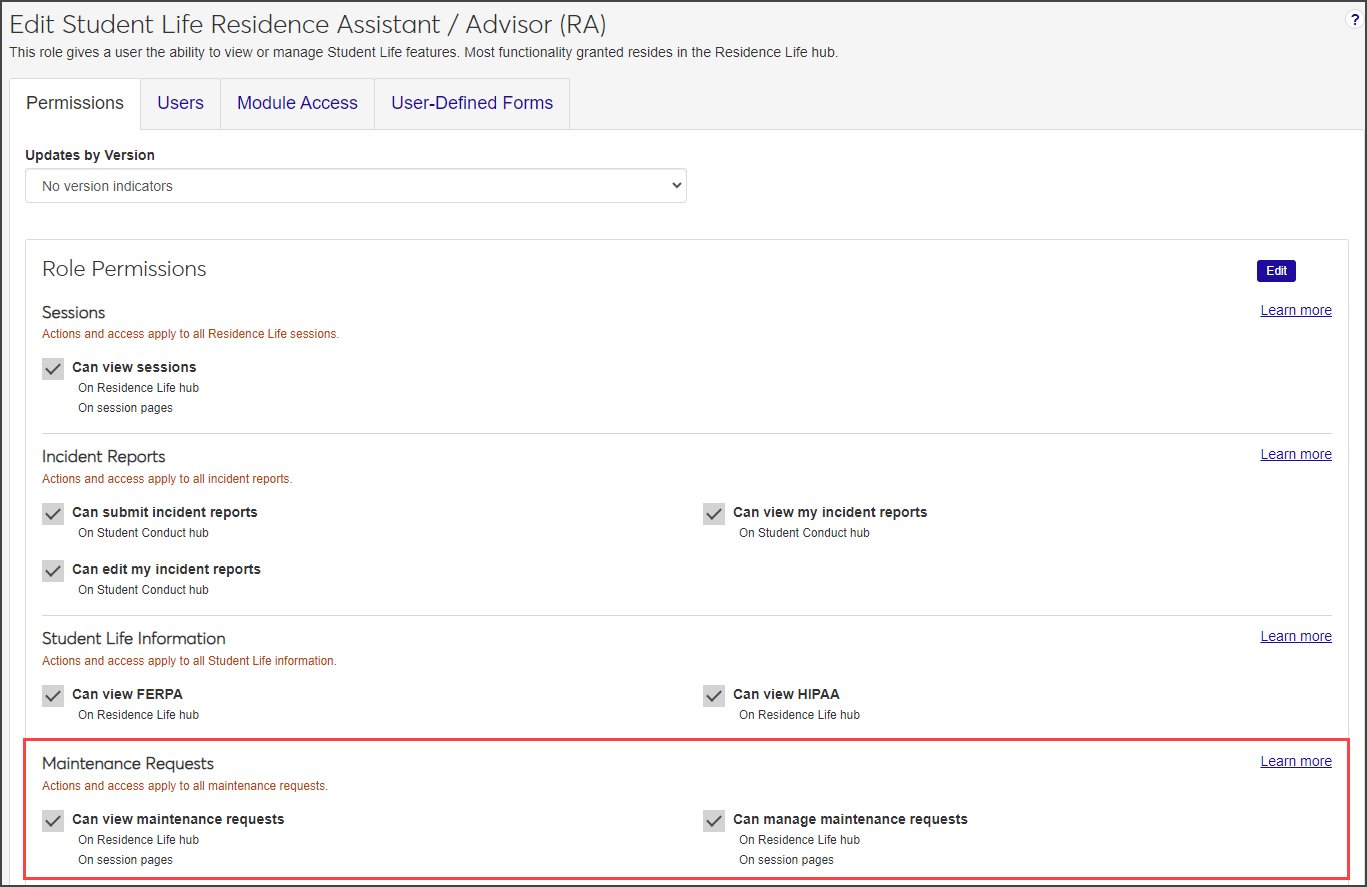
The request maintenance feature is available to users who have maintenance permissions enabled on the following pages:
Residence Life hub
Residence Life Admin hub
Session summary page (from the Session options drop-down)
Before maintenance requests can be created, an automation plan for maintenance requests must be set up in the Workflow hub. The automation plan specifies who will receive the notification when a maintenance request is submitted. If no recipients are designated, communications will not be sent. See Automation Plans for information about how to create an automation plan.
There are a couple of ways to create a new maintenance request:
From the Residence Life hub (or Residence Life Administration hub), click the Request maintenance button on the Maintenance Requests block.
From the Residence Life hub (or Residence Life Admin hub), click the Hub options drop-down menu and select Maintenance request options, then Request maintenance.
To request maintenance:
Click the Request maintenance button on the Maintenance Requests block or select it from the Hub options drop-down. The Request Maintenance pop-up opens.
Click in the Residence Space field and begin typing the name of the space, then select the correct space when it appears in the list.
Click in the Requested By Name / ID field and begin typing the name or ID of the person requesting the maintenance, then select the correct name when it appears on the list.
Click in the first Date / Time Requested field and use the pop-up calendar to select the date of the request.
Click in the adjacent field and select the time the request was made.
Enter a Description of the maintenance needed.
Click Send request. A notification is sent automatically to those designated as recipients in the maintenance request automation plan.
There are a couple of ways to view and manage maintenance requests:
From the Residence Life hub (or Residence Life Admin hub), click the View all maintenance requests link in the Maintenance Requests block.
From the Residence Life hub (or Residence Life Admin hub), click the Hub options drop-down menu and select Maintenance request options, then Manage maintenance requests.
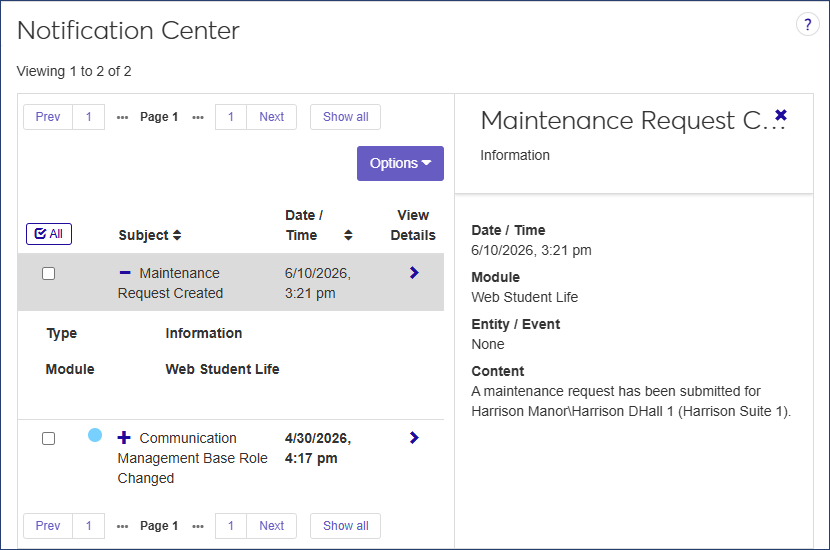
An automation plan must be created in the Workflow hub before requests can be submitted. Maintenance contacts are specified in the automation plan. After the automation plan is created, a new maintenance request will cause a notification to be sent to the Notification Center for each contact person.
 |
To set up an automation plan, you must be in the Student Life Module Manager role (or a role copied from it) with the "Can manage maintenance requests" permission enabled.
Review and update user roles and permissions in the System Administration hub to ensure that the appropriate permissions are set for your staff.
The request maintenance feature is available to users who have maintenance permissions allowed on the following pages:
Residence Life hub
Residence Life Admin hub
Session summary page (in the Session options drop-down)