At the time students attempt to register online, Advisors can interact with their Advisees via Advisor Approval or Advisor Clearance.
Based on each Web Registration Group, you can indicate if that group of students is required to have Advisor Clearance or Advisor Approval.
1. Open the Web Registration Group Definition window.
2. For each Web Registration Group for which you want to require Advisor Approval, select A - Advisor Approval Required in the Web Registration Requirement drop-down list.
3. For each Web Registration Group for which you want to require Advisor Clearance, select C - Advisor Clearance Required in the Web Registration Requirement drop-down list.
4. If you want to turn off Advisor Approval and Advisor Clearance, select N - None Required.
5. These settings are stored in TW_GROUP_DEF.WEB_REQ_REQUIREMENT column.
If you select A - Advisor Approval Required for a Web Registration Group, each student in that group will be able to initially register for courses online and the status of each of the registrations will be set to 'Reserved.' The Student Course History row is flagged as Advisor Approval Required (ADV_APPROVAL_REQ). The student has reserved a seat in the class; but in order for those registrations to be changed to 'Current,' the advisor must "approve" the 'Reserved' registrations.
· The student's advisor can "approve" the student's registrations in the advisee's Add/Drop Courses screen in the Advisee Roster portlet in campus portal (JICS). When the advisor approves the 'Reserved' registration, the Student Course History row is flagged as 'Advisor Approved' (ADV_APPROVED) and the date is stored (ADV_APPROVAL_DTE).
· Registration Office personnel can change the status from 'Reserved' to 'Current' in the Student Registration window. The Manage Reserved Courses Controls group box on the Configuration Table tab settings in the Registration Configuration window allow you to configure how J1 will deal with registrations that are in a 'reserved' status.
If you select C - Advisor Clearance Required for a Web Registration Group, each student in that group will be required to get clearance from their advisor before the student can register online. It is similar to putting a registration hold on the student. If you use this option, it is expected that the student and advisor meet to review the courses for which the student intends to register.
Registration Office personnel can register students in the Registration Clearance/Approval window.
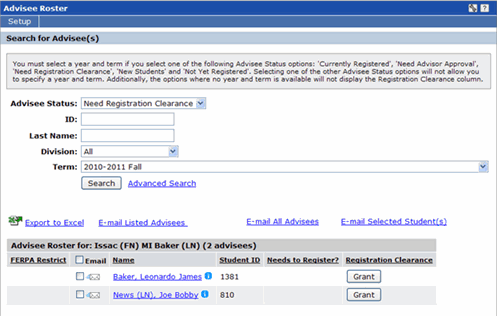
The student's advisor can grant clearance in the Advisee Roster portlet in campus portal (JICS).
1. Select Needs Registration Clearance in the Advisee Status column on the Search for Advisees screen.
2. The Advisee Roster displays a column labeled "Registration Clearance."
3. One of the following is displayed for each advisee in that column: a Grant button, a Revoke button, or the text "Not Applicable."
4. To grant clearance to an advisee, the advisor clicks the Grant button. J1 writes a row in the REG_CLEARANCE table, the list of students is refreshed, and the student's name is no longer displayed in the list.