 Create and Review Part A and Part B of IPEDS Fall Enrollment Report
For information about collecting data that will be used as the basis for the IPEDS Fall Enrollment report, follow the instructions in the "Collecting Data for IPEDS Fall Enrollment/GRS Reports" topic and then continue the steps in this set of instructions.
Create and Review Part A and Part B of IPEDS Fall Enrollment Report
1. Open the Regulatory Reporting window.
2. In the Regulatory Forms box in the header, select EF-1 IPEDS Fall Enrollment/GRS (or EF2 or EF 3, depending on your IPEDS configuration settings).
3. In the Snapshots drop-down list, select the Snapshot Date for the IPEDS Fall Enrollment/GRS data that you have just created.
4. After you have selected the form and the Snapshot in the header, the Report tab defaults to Part A and the original IPEDS report for Fall Enrollment, Part A that J1 provides.
a. The report displays the total number of Male and Female Part-Time and Full-Time Undergraduate and Graduate students for the CIP grouping required by NCES. CIP 99.0000 is the grouping used to report all students. In alternate years, NCES requires you to report other CIP groupings.
b. To see the Ethnic/Race detail for Females, click the plus sign (+) to the left of the "Female" label.
c. To see the ID Number and name of each student that makes up each count, click the plus sign to the left of the "Ethnic/Race" label.
d. Repeat Steps a, b, and c for detailed data for Males.
e. If you have any "Unknown" labels, these indicate that you are still missing Ethnic/Race or Gender information for one or more students that are flagged for IPEDS in the Institutional Research Student Data Records window.
5. After you select Part B in the Part drop-down list, the Report tab defaults to Part B and the original IPEDS report for Fall Enrollment, Part B that J1 provides.
a. The Part B report displays Enrollment by Age and Gender for both Undergraduate and Graduate Students.
b. To see the age groups, click the plus sign to the left of the "Undergraduate" and/or "Graduate" labels.
c. Drill down to see the ID Number and name of each student that makes up each count.
6. After you select Part C in the Part drop-down list, the Report tab defaults to Part C and the original IPEDS report for Fall Enrollment, Part C that J1 provides.
a. The Part C report displays Residence of First-time Undergraduate Students.
b. To see the ID Number and name of each student that makes up each count for each state, click the plus sign to the left of the state.
7. After you select Part D in the Part drop-down list, the Report tab defaults to Part D and the original IPEDS report for Fall Enrollment, Part D that J1 provides.
a. The Part D report displays the Total Undergraduate Entering Class for the current year.
b. The counts for D1, D2, D3, and D4 are based on counts from Part A.
c. The count for D5 is based on undergraduate students in the IR Student Data table that are flagged as both non-degree seeking and first time in postsecondary education.
d. The counts for D6 and D7 are calculated based on the counts in D1-D5..
8. After you select Part E in the Part drop-down list, the Report tab defaults to Part E and the original IPEDS report for Fall Enrollment, Part E that J1 provides.
a. The Part E report displays the First-Time Student Cohort Retention Rates for the previous year's cohort/.
b. Part E is populated in a different way, not via the Collect Student Data button on the Create/Work with Snapshots window. In that window when the focus is on the Snapshot Date, the Additional IPEDS Data tab displays on the left side of the window. On the Fall Enrollment subtab, you can use the Populate Part E button if you have a snapshot from the previous year. If you do not have a snapshot from last year, then type the needed values in each count bucket and save.
c. The report displays the Full-Time and Part-Time counts and retention rates.
9. After you select Part F in the Part drop-down list, the Report tab defaults to Part F and the original IPEDS report for Fall Enrollment, Part F that J1 provides.
a. The Part F report displays the Student-to-Faculty ratio.
b. Part F is not calculated by the system. You need to decide the data you can use to calculate a student-to-faculty ratio.
c. When you have calculated the ratio, type it on the Fall Enrollment subtab of the Additional IPEDS Data tab on the Create/Work with Snapshots window as described for Part E.
When you are satisfied that the numbers in all of the Fall Enrollment reports are accurate for reporting to NCES, then you can do one of the following:
1. Manually enter the Fall Enrollment numbers on the IPEDS website.
a. Print all of Fall Enrollment reports that display the numbers.
b. Go to the NCES website and type the numbers into their interface.
2. Import a file on the NCES website that contains your numbers.
a. Select the Web Import tab.
b. Click the Create the Web Import File button.
c. Accept the path defaulted in the Web Import File Path prompt that is displayed. Click the OK button.
d. If the file already exists, you get a message asking if you wish to continue. Click Yes.
e. The result you see will be similar to the following:
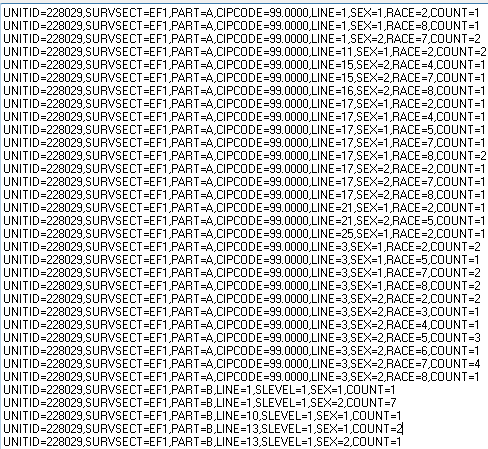
f. If you wish, go to the NCES website to view the information about the Key Value pairs displayed above: https://surveys.nces.ed.gov/ipeds/VisImpSpecView.aspx?id=21&show=all&instid=506
g. Log in at https://surveys.nces.ed.gov/ipeds/ and follow the instructions on the website to import the Fall Enrollment Key Value Pair file you created within J1.
Modifying Regulatory Reporting Reports, Queries, and Views
If you wish, you can modify any of the IPEDS reports provided by default on the Report tab of the Regulatory Reporting window.
1. Open the Regulatory Reporting window.
2. Click the Report tab.
3. Click the Customize button, and click OK to the message that is displayed.
4. Once the report opens, immediately choose File > Save As and add your initials or some other identifier to the end of the report name. This addition keeps your changes from being overwritten the next time the Customize button is clicked.
5. Note that the reports are based on views and that a level of sophistication is needed to make major changes to these reports.
Modifying the Web Import File requires multiple steps.
1. First, you must customize the Original J1 query d_q_ir_ipeds_ef1_v as described above.
2. The query selects a View that returns the Key Value Pairs needed so that you can import data when you are logged in to the IPEDS website.
3. If you wish to change the View, you must rename the View and then have your customized "d_q_ir_ipeds_ef1_v_uhe" query reference your renamed View.
4. If you make changes, be sure that you still maintain the argument and output of the query.
5. The Views used for the Fall Enrollment report is one of the following:
o IR_IPEDS_EF1_EXPORT_V
o IR_IPEDS_EF2_EXPORT_V
o IR_IPEDS_EF3_PRIVATE_EXPORT_V
o IR_IPEDS_EF3_PUBLIC_EXPORT_V
Lock the Snapshot for the Fall Enrollment
When you have successfully reported your Fall Enrollment data to NCES, lock the Snapshot that contains the data you reported if you have not already done so earlier in the process. When a Snapshot is locked, users are unable to modify the data in the Snapshot. If you have permission, you may unlock a Snapshot for a Purpose Code to which you have access (Purpose Definition window).
|
|
You must have Tasklist Permissions to select and clear the Lock Snapshot checkbox. Tasklist permissions for the Lock Snapshot option should be given only to persons you trust to unlock a Snapshot that has been locked. |
