 )
will display beside the "Attachments" label on the tab.
)
will display beside the "Attachments" label on the tab.This tab is used to review any attachment information that is included
in a submission. The Attachments
tab is available if there is attachment data available for the current
submission. If any submitted attachments/essays were submitted but not
yet saved, the sunburst icon ()
will display beside the "Attachments" label on the tab.
The Attachments tab allows you to assign submitted essays from inquiries and applications to a specific CANDIDACY row. The essays are entered through text columns on the J1 Desktop application or the online application and are saved in TXT or HTML format. The Saved Candidacy Rows grid is used to review any attachment information that is included in a submission that needs to be saved to the CANDIDACY_ATTACHMENT table.
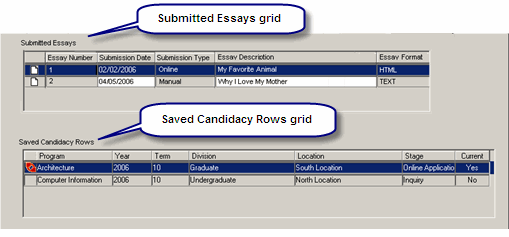
The Submitted Essays grid displays submitted
attachments mapped to the CANDIDACY_ATTACHMENT logical mapping table.
It displays a document icon ( )
(if appropriate), Attachment Number, Submission Date (defaults to current
date/time), Submission Type (default is Online
for all submitted attachments), Attachment Description (determined by
the submitted ATTACHMENT_TYPE value), and Attachment Format (only format
available for attachments submitted online is HTML).
)
(if appropriate), Attachment Number, Submission Date (defaults to current
date/time), Submission Type (default is Online
for all submitted attachments), Attachment Description (determined by
the submitted ATTACHMENT_TYPE value), and Attachment Format (only format
available for attachments submitted online is HTML).
The Saved Candidacy Rows grid displays a list of the existing CANDIDACY rows in the J1 database. It displays an Assignment icon (if appropriate), Program, Year, Term, Division, Location, Stage, and Current Candidacy. If there are differences on the Candidacy tab that have not yet been saved to the database, a warning message is displayed above the Saved Candidacy Rows grid: "Warning: You have not yet saved submitted Candidacy information. You may want to do so in order to ensure all of the appropriate Candidacy rows are available for assignment of the essays."
If you do not assign the essay to a CANDIDACY row before trying to save the data on the Attachments tab, the following message is displayed: "Please assign the essays to a Candidacy row." Your only option is to click the OK button and make the assignment.
When the data on the Attachments tab is saved, a new row is created in the CANDIDACY_ATTACHMENT table to associate the attachment, which is saved to the ATTACHMENT table when the submission is first received by J1 Desktop, to the selected CANDIDACY row.
The Attachments tab allows you to review note text that is included in a submission. This text is information only, and you can determine how/where the information should be processed and/or saved.
You can copy the submission text for use in another J1 Desktop window.
You can click the Create Note button to create a note to be inserted into the Notepad (ITEMS table) for the ID Number. This note in Notepad can then be edited/updated.
When the Item Description window in Notepad is closed, a new row is created in the ITEMS table for the ID Number who submitted the information. If the row is created successfully, the sunburst icon is removed from the "Attachments" tab label. You will be alerted if the row is not created successfully.
