The Admissions Import Utility can search through the data in the Import Utility (IU) tables to determine if a record is a duplicate of one that currently exists in the J1 database. The key to its effectiveness lies in the actual criteria that are used to evaluate the data.
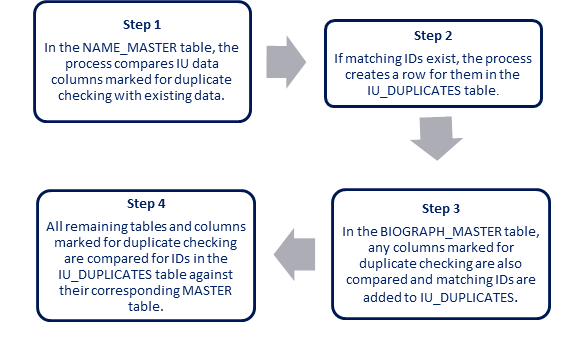
When the duplicate name search process is run, it completes several steps to find matching IDs.
You have the option to select from a multitude of columns in the IU tables on the Upload Criteria tab when checking for duplicates. If you wish to use a particular column as part of the duplicate search criteria, select both the Used and Dup Search checkboxes for the column. The Check Database process retrieves a list to use for duplicate searching.
|
To improve the likelihood of an accurate match, use a piece of unique data, such as address or phone number, along with a last name. This prevents the duplicate checking process from misidentifying matches. |
The process then checks the data for each Temp ID in the IU tables. If import data exists for the Temp ID for a column marked to be used for the duplicate search, the import data in that column is compared against the existing data in the specified column of the J1 table.
|
It’s best to run the Check Database process before uploading your data so that you can resolve any matches or errors. However, it is possible to run the full Upload Data process without checking for duplicates or errors. |
If a match is found during the Check Database or Upload Data process, then the Temp ID is marked with a match found indicator ('Y') on the Duplicates tab for the table(s) in which the match is found.
|
Rows are included on the Duplicates tab if either of these scenarios are true: · An existing ID in NameMaster matches the imported data of a Temp ID in the IU_NAME table for all of the NameMaster columns marked on the Upload Criteria tab as Duplicate Search. · An existing ID in BIOGRAPH_MASTER table matches the imported data of a Temp ID in the IU_BIOGRAPH table for all of the BIOGRAPH_MASTER columns marked on the Upload Criteria tab as Duplicate Search. |
All matches found by the process appear on the Duplicates tab, but if a particular Temp ID matches multiple existing IDs, it also appears on the Multiple Matches tab. You can verify which multiple match is correct or indicate that none of them should be included.
Once the Check Database process compares the data, a report showing the duplicate information can be printed (use the Rows | Print Duplicates menu) or a report showing the multiple matches of information can be printed (use the Rows | Print Multiple Matches menu).
Assume that your Upload Criteria tab has been defined such that a duplicate search will be done on IU_NAME.FIRST_NAME and IU_NAME.LAST_NAME. You have just imported data from the outside source into the IU_TABLES and now have 150 rows in the staging database. One of these rows is for Bobby Jo Wilcox.
The Name tab will display the following information for Bobby Jo:
Seq |
Temp ID |
ID Num |
Last Name |
First Name |
Middle Name |
1 |
1 |
937 |
Wilcox |
Bobby |
Jo |
By clicking on the Address tab, you will discover that temporary ID Number 1 (Bobby Jo Wilcox) also has address information that has been brought over into the staging database.
Seq |
Temp ID |
ID Num |
Addr Cde |
Addr Line 1 |
City |
State |
1 |
1 |
|
*LHP |
150 Main St. |
Harrisonburg |
VA |
Notice that the temporary ID Number links the rows across each tab for a particular person. If there are no other ID Numbers with the first name of 'Bobby' and the last name of 'Wilcox' in your J1 database, the Check Database option will not find any duplicates for Bobby Jo Wilcox and therefore all data for temporary ID Number 1 will be uploaded via the Upload Data process into your database with a newly generated ID Number.
However, if Bobby Wilcox is a name that already exists in your J1 database, after running the Check Database process, the Duplicates tab would contain information similar to the following:
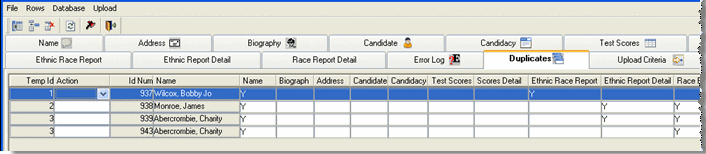
The 'Y' in the Name column of this window indicates that a person named Bobby Wilcox (which matches temporary ID Number 1) already exists in your J1 tables (NameMaster table) with an ID Number of 937.
|
A 'Y' (Found) displays in the appropriate column to indicate matching data was found in a particular MASTER table if: · Columns in any of the import tables were selected for use in the duplicate search. · Data in the IU tables for a Temp ID matches data in the J1 tables for an identified ID Number. The absence of a 'Y' could mean: · No columns on the table were marked for use in the duplicate search and therefore no duplicate checking was done for the table. · No data exists in the table for the found ID Number. · Data exists for the found ID Number but there was no match between the temporary ID Number's data and the found ID Number's data. |
There are several steps for reviewing and handling duplicates:
· First, check to see if you have any multiple matches noted on the Multiple Matches tab. If any are listed, you need to determine which of the found ID Numbers is the correct match to the displayed temporary ID Number, if any.
o If none of the listed ID Numbers are a match, then on the Duplicates tab, set the Action down-down list to 'Not Match' for the ID Numbers noted as a match on the Multiple Matches tab and save the changes on the Duplicates tab. This removes the ID Numbers from the Duplicates tab.
o If one of the ID Numbers is a match, select the Match checkbox for the appropriate ID Number and click the OK button. This removes the non-matched ID Numbers associated with the same Temporary ID from the Duplicates tab.
· If there are not multiple matches, determine if Bobby Jo Wilcox in the Import Utility tables is a different person than the one who is represented by ID Number 937 in the J1 database. If you have verified that ID 937 is a completely different person, Bobby Jo's information needs to be added to the J1 tables as a new ID Number. To insert the imported information as a new name, remove the row from the Duplicates tab using the 'Not Match' option in the Action drop-down list. Save the changes on the Duplicates tab in preparation for the upload step.
· Last, determine the set of information that is the most current: J1 system, the outside source, or some combination of the two.
o If the J1 system information is most up to date, you can indicate this row on the Duplicates table with either a 'Y' (Found) or leave it blank (Not Found) in all of the table-name columns for the row. The data from the IU tables will not be uploaded into your J1 database.
o If the outside source is most up to date for all of the tables, you need to update the system with the new information. To do this, you can either select the 'M' (Match) option from the Action drop-down list to set all of the table-name columns to 'M' (Merge) or you can manually change the individual table-name columns to 'M' (Merge) to indicate that the data in the IU tables should overwrite the existing data.
o If the outside source contains some more recent information but you wish to keep some of the existing J1 system information, you can choose on a table-by-table basis the data to import. For the tables you wish to leave as is, verify that the corresponding table-name column has a 'Y' (Found) or blank (Not Found) specified. For the tables where you want to use the outside source's data, select the 'M' (Merge) option to indicate that the data in the corresponding IU table should be merged into the J1 table. Note that the Merge option inserts a new row if no row already exits, and it overwrites an existing row with whatever data is in the IU table.

